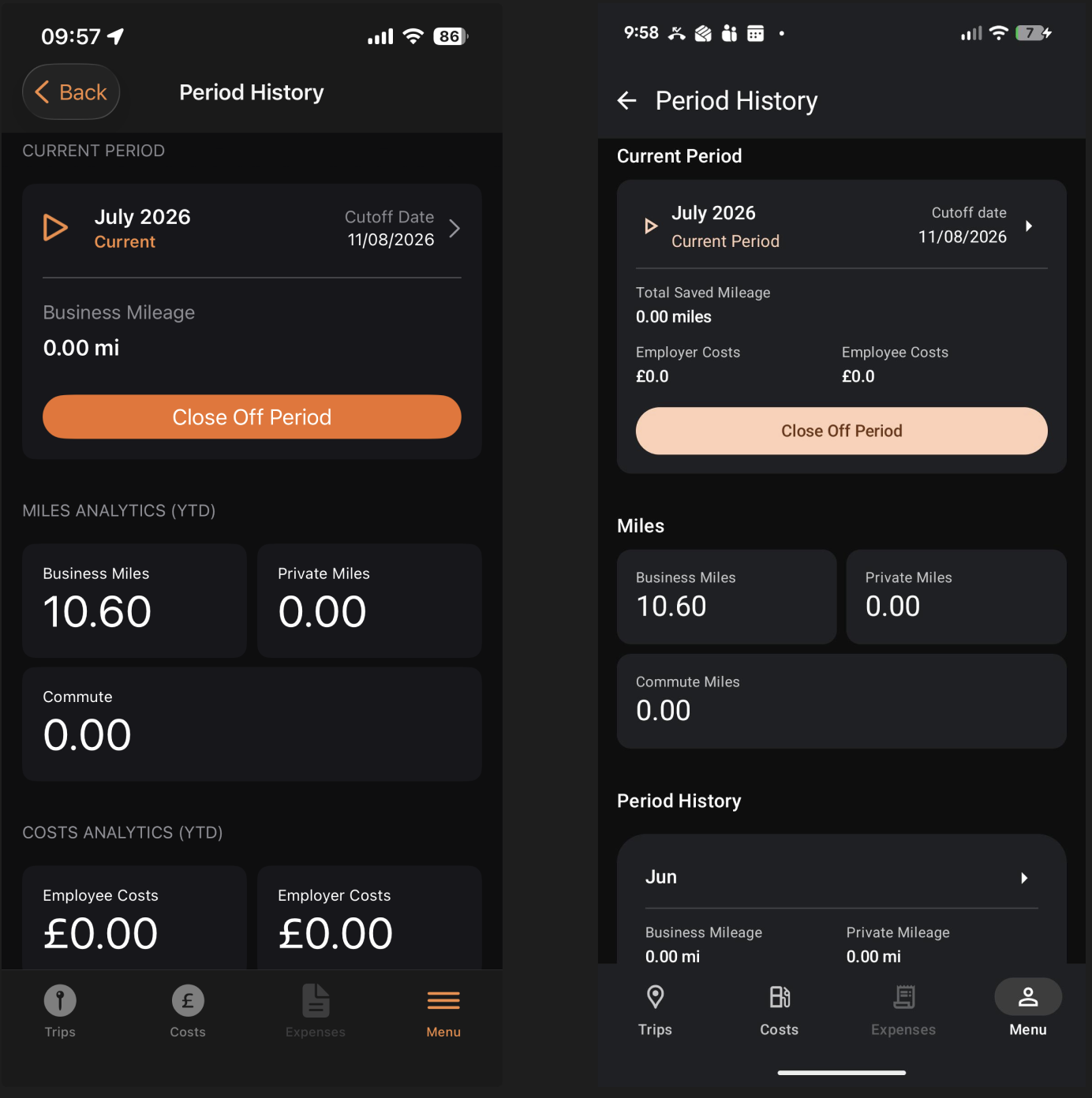
Mileage+ is organised into four main tabs, found at the bottom of the screen. These give you quick access to everything you need:
- Trips – View and manage your recorded journeys, both saved and unsaved.
- Costs – Add and manage fuel costs and receipts linked to your journeys.
- Expenses – Coming soon
- Menu – See your account details, set AutoTrack times, toggle home EV charging, and view vehicle details.
Tap any tab to switch between sections at any time.
Trips
The Trips tab is your central hub for managing journeys. It's split into two sections:
- Unsaved – Journeys recorded by AutoTrack appear here until you review and confirm them.
- Saved – Confirmed AutoTrack journeys and manually entered trips appear here.
For more detail on the difference between the two, see user guide: Understanding saved and unsaved trips
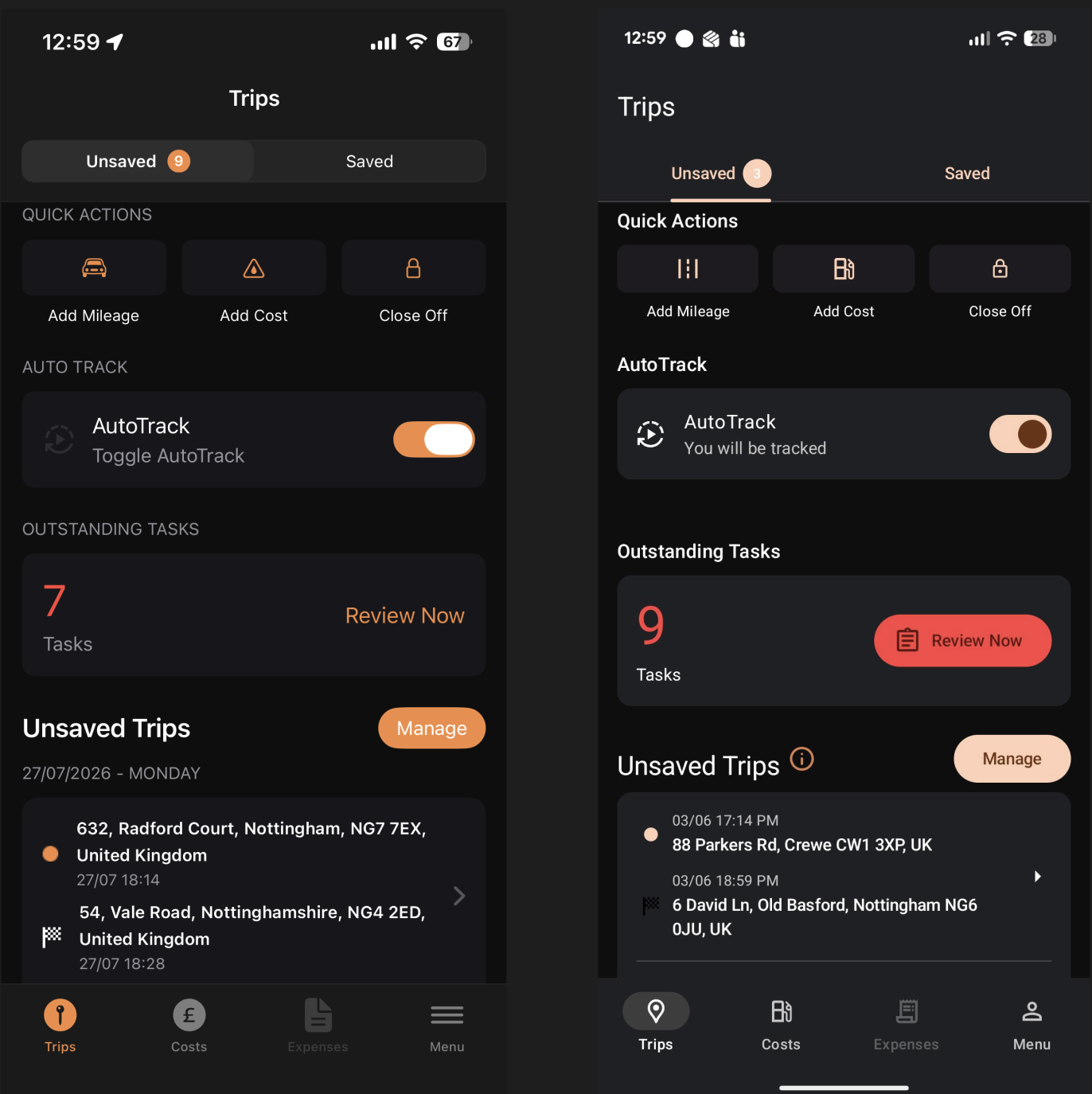
From this tab you can also:
- Add a trip manually – Tap "Add Mileage" to log a journey that wasn't automatically recorded.
- Add a cost – Tap "Add Cost" to attach a receipt or expense for a journey.
- Close off – Tap "Close Off" to submit your trips at the end of the month.
Costs
The Costs tab displays all your logged expenses for the current month. At the top of the screen you'll find four filters — All, Employee, Employer, and Other — which you can use to filter your costs by category.
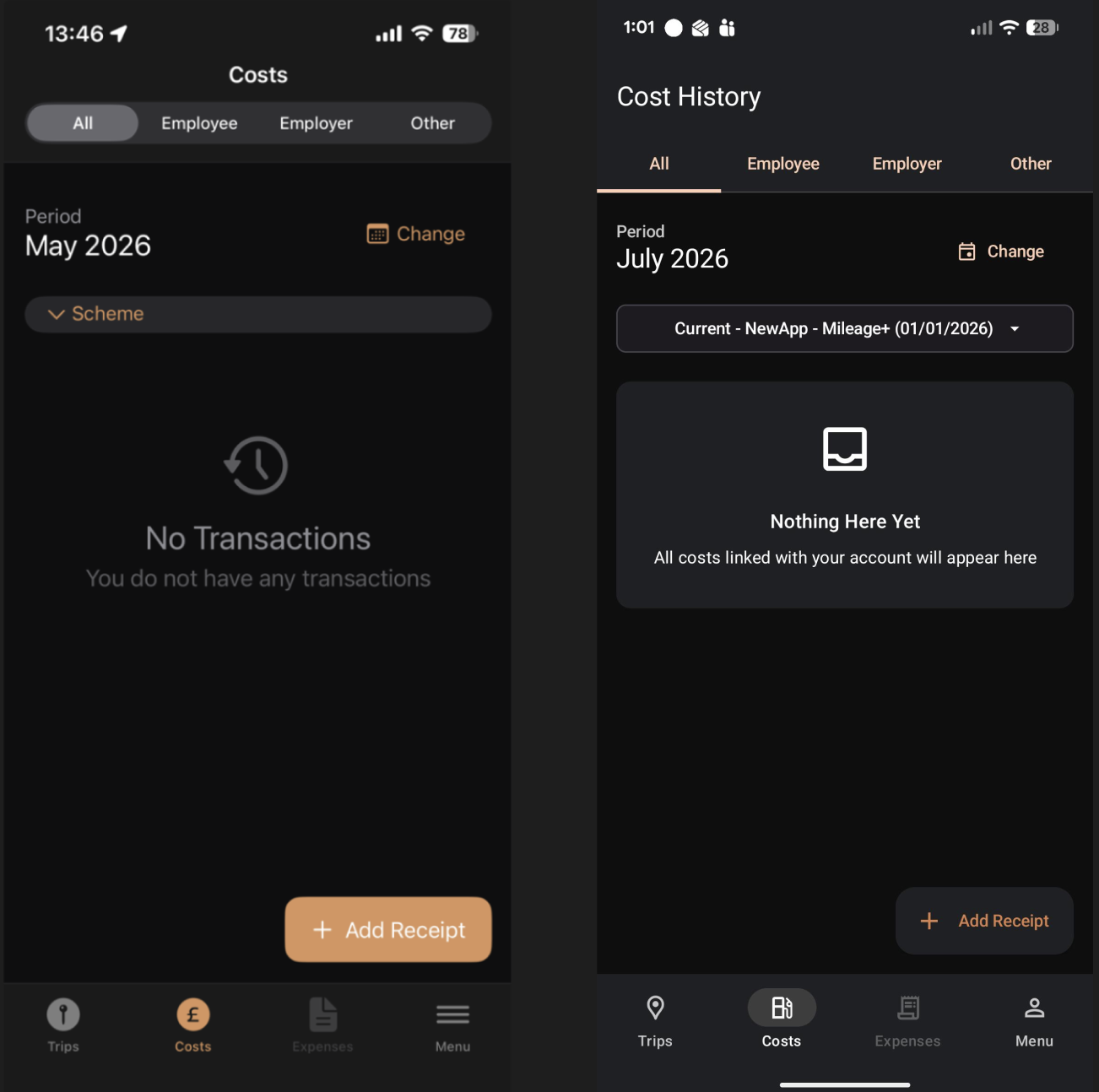
To add a new receipt, tap Add Receipt.
For more detail on adding receipts, see user guide:
https://support.tmc.co.uk/a/solutions/articles/204000081247?lang=en&portalId=204000007068
Menu
The Menu tab is where you can see your account details, autotrack settings, EV home charging, vehicle details, vehicle safety checks, audit category, period history, expense history, about this app, and the option to send app logs.
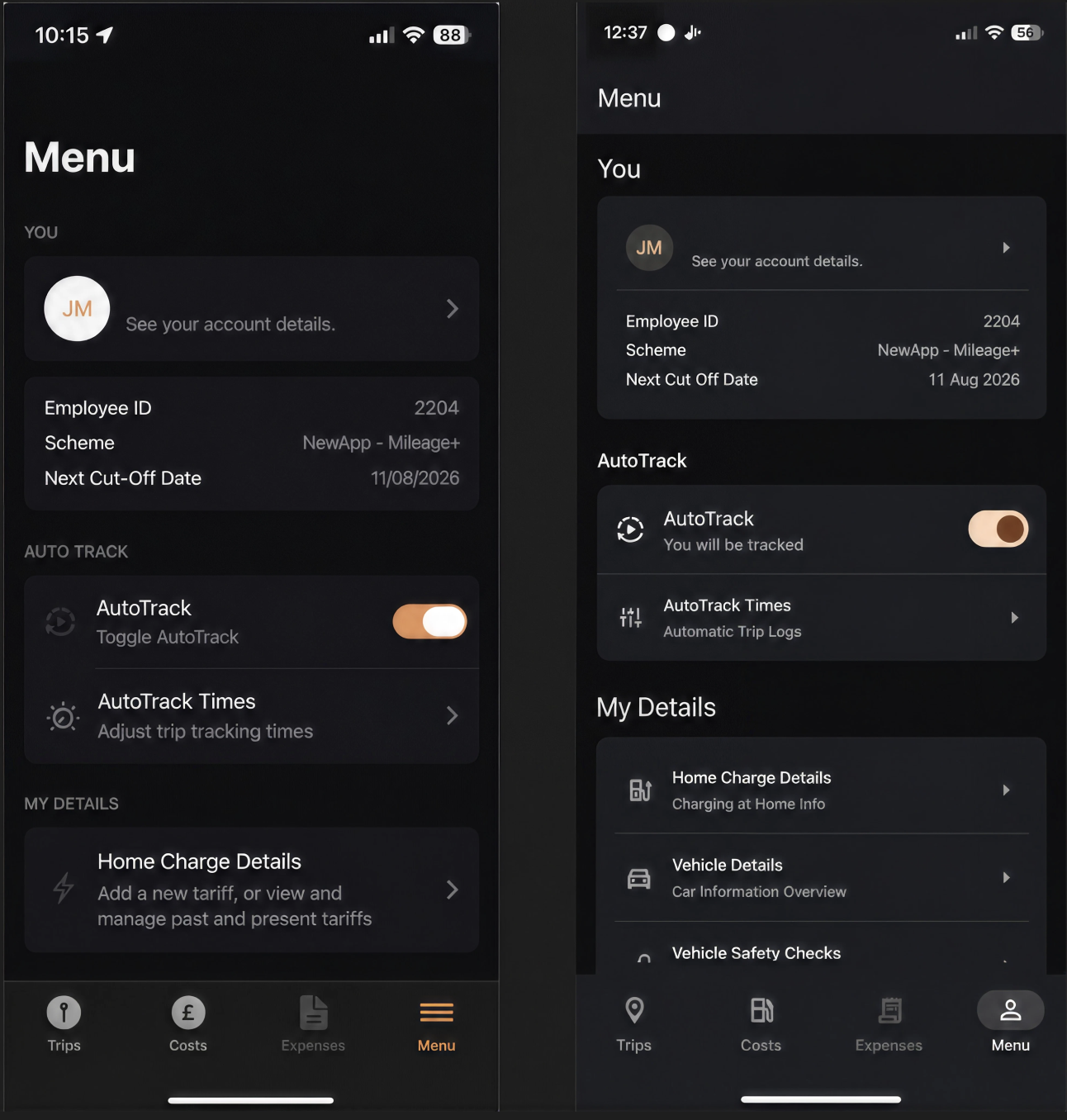
Account details
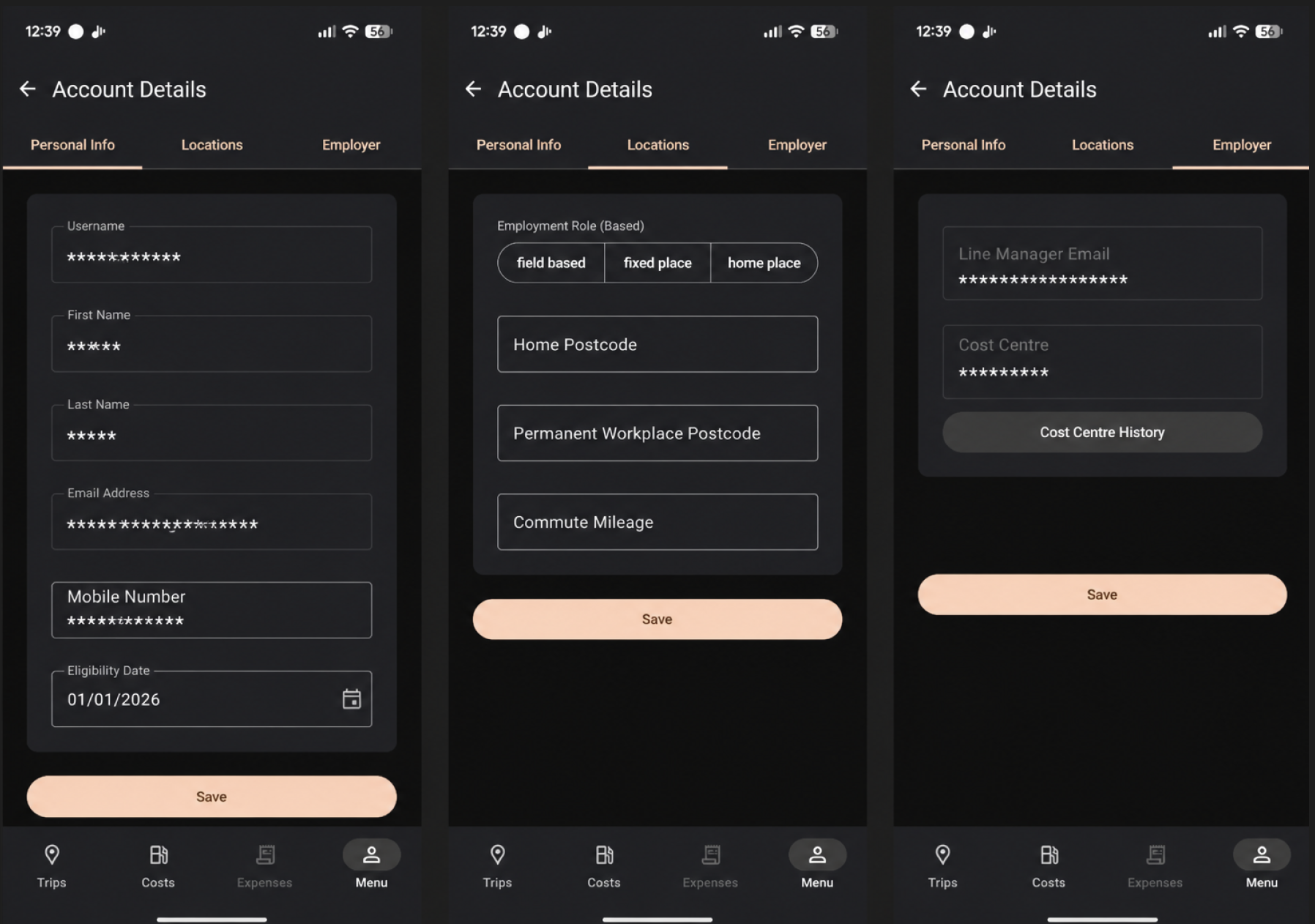
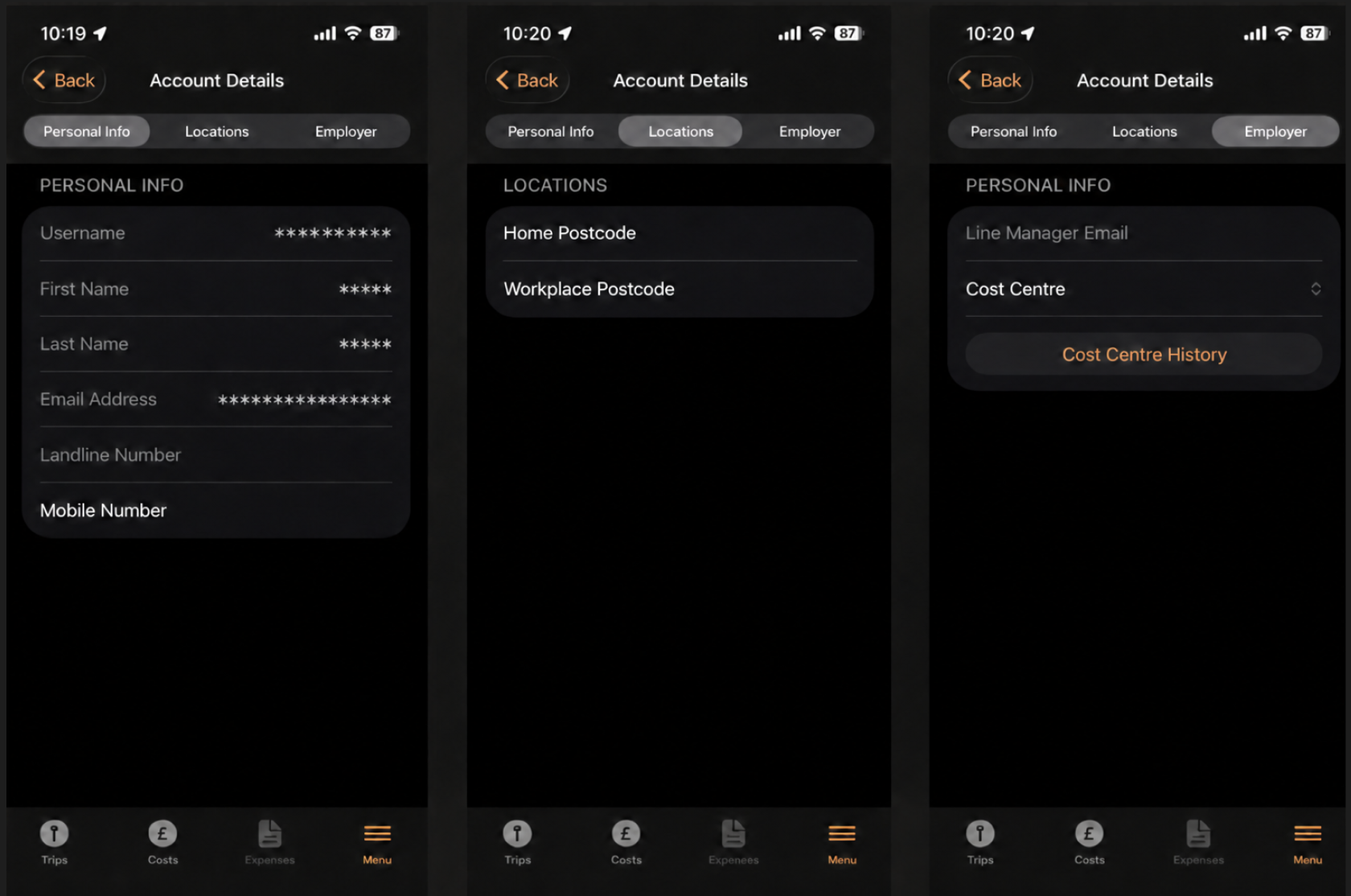
Account details is split into three sections; personal info, locations and employer. You can find all the contents of each in the screenshots below:
Autotrack settings
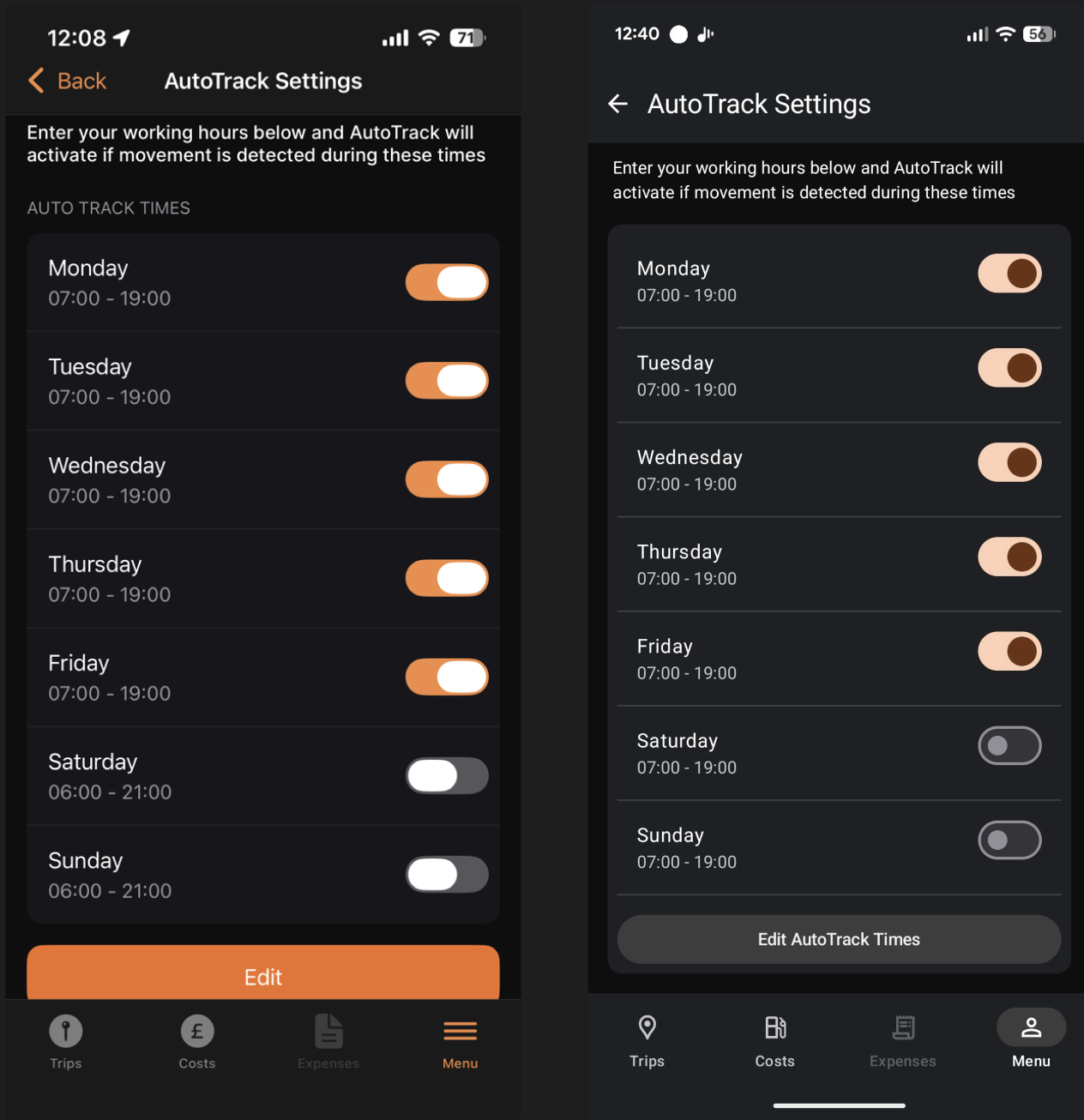
AutoTrack Settings lets you control when the app tracks your journeys. You can set which days AutoTrack is active, and configure a time window for each day — so the app only tracks during the hours you're working.
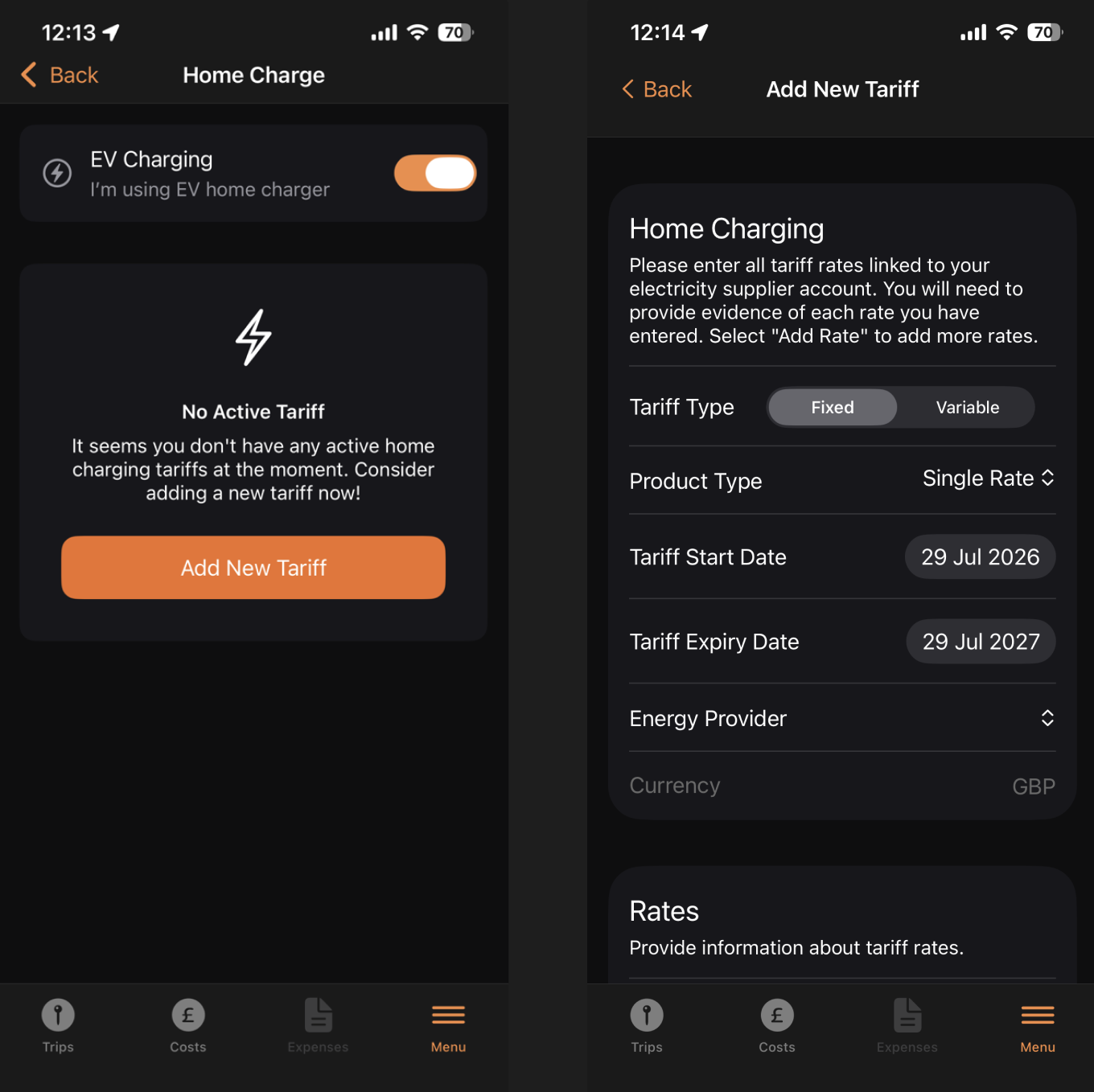
EV home charge details
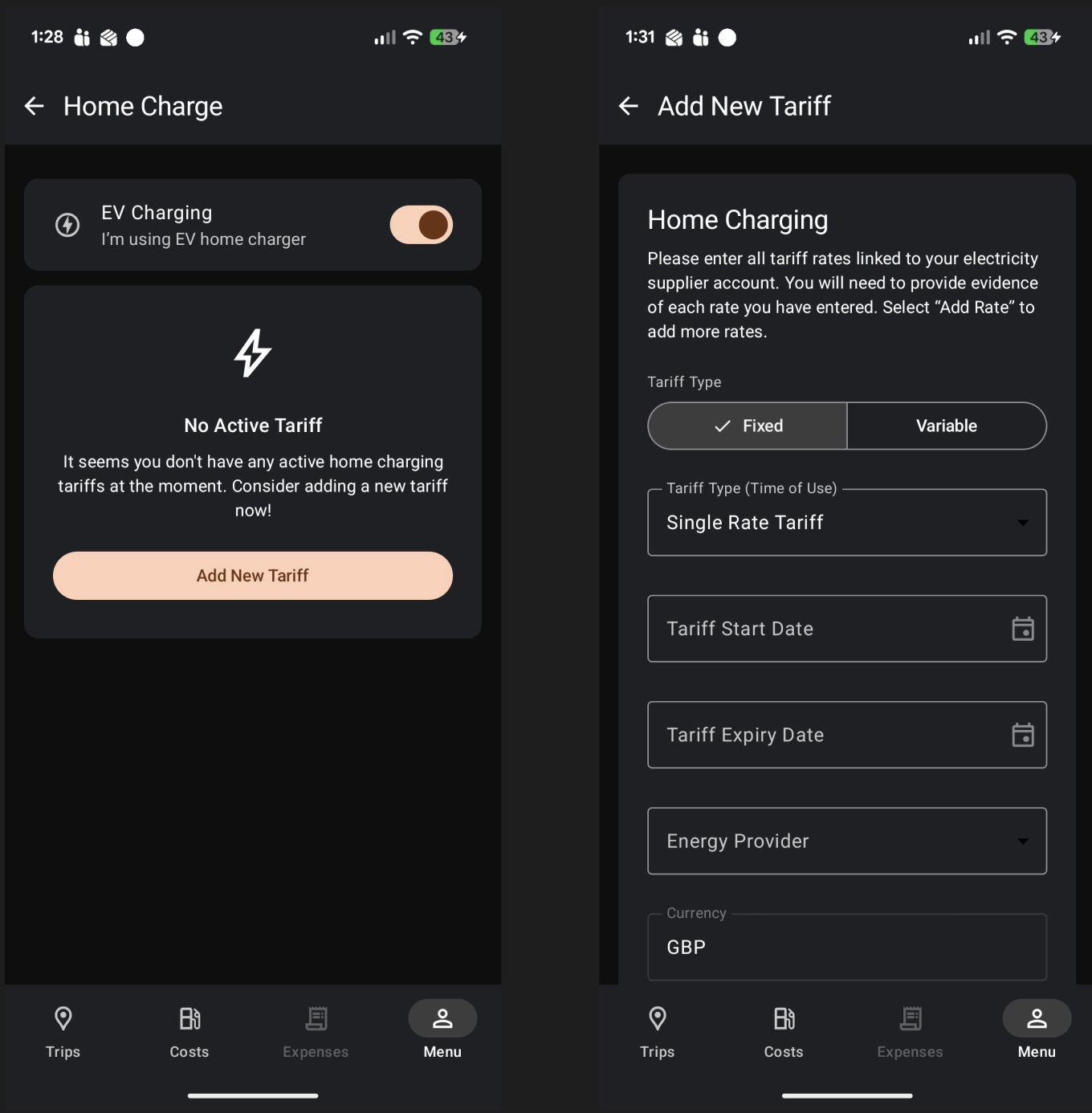
Here you can toggle on EV charging if you have an electric car and charge it at home. Then you can add a fixed or variable tariff by completing the forms.
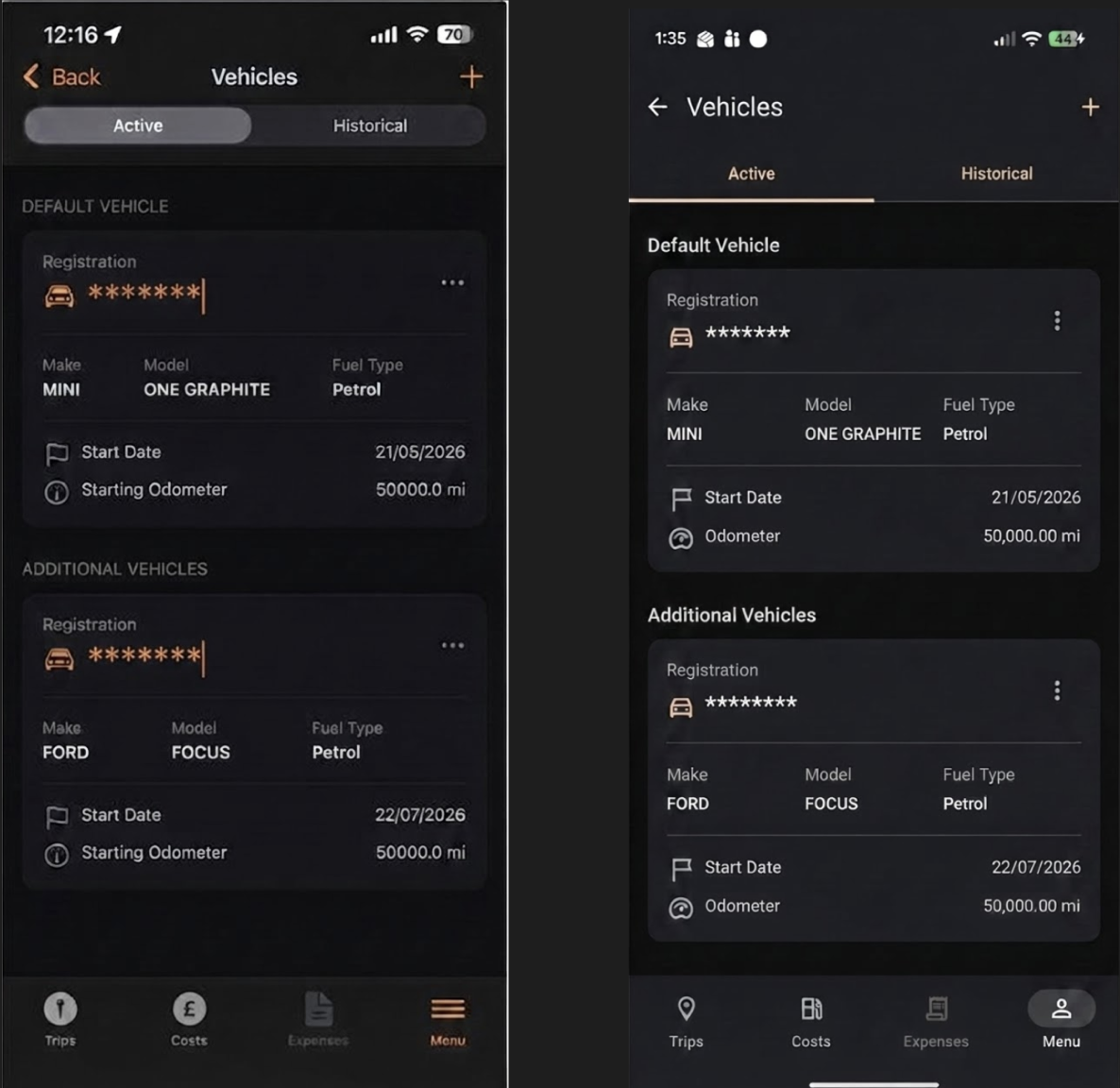
Vehicle details
In vehicle details you can see information about your active vehicles, as well as add new vehicles and see historical vehicles used on your account.
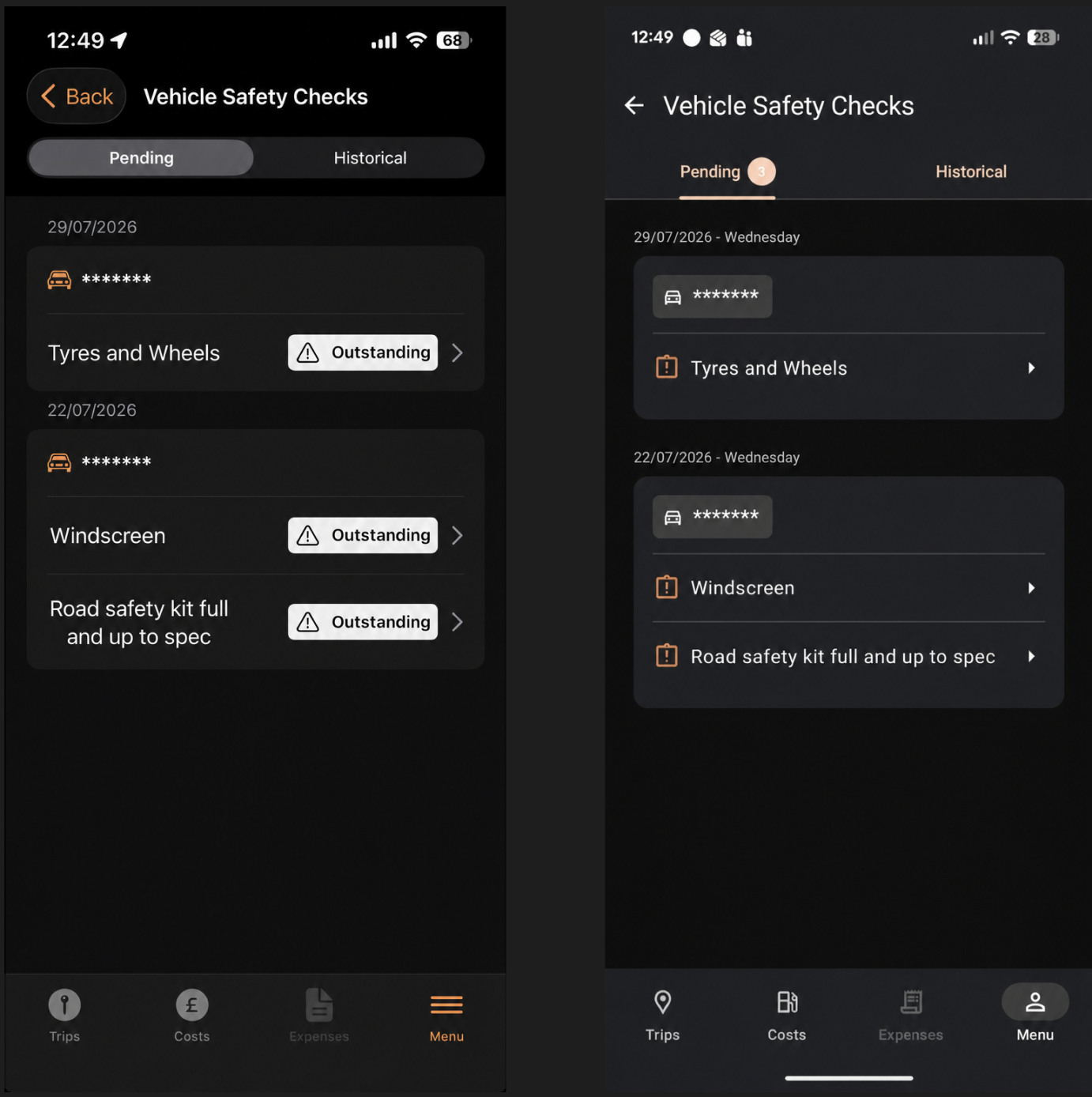
Vehicle safety checks
Here you can see all the pending and completed vehicle safety checks for your vehicles. For further information on vehicle safety checks, see user guide: Vehicle safety checks
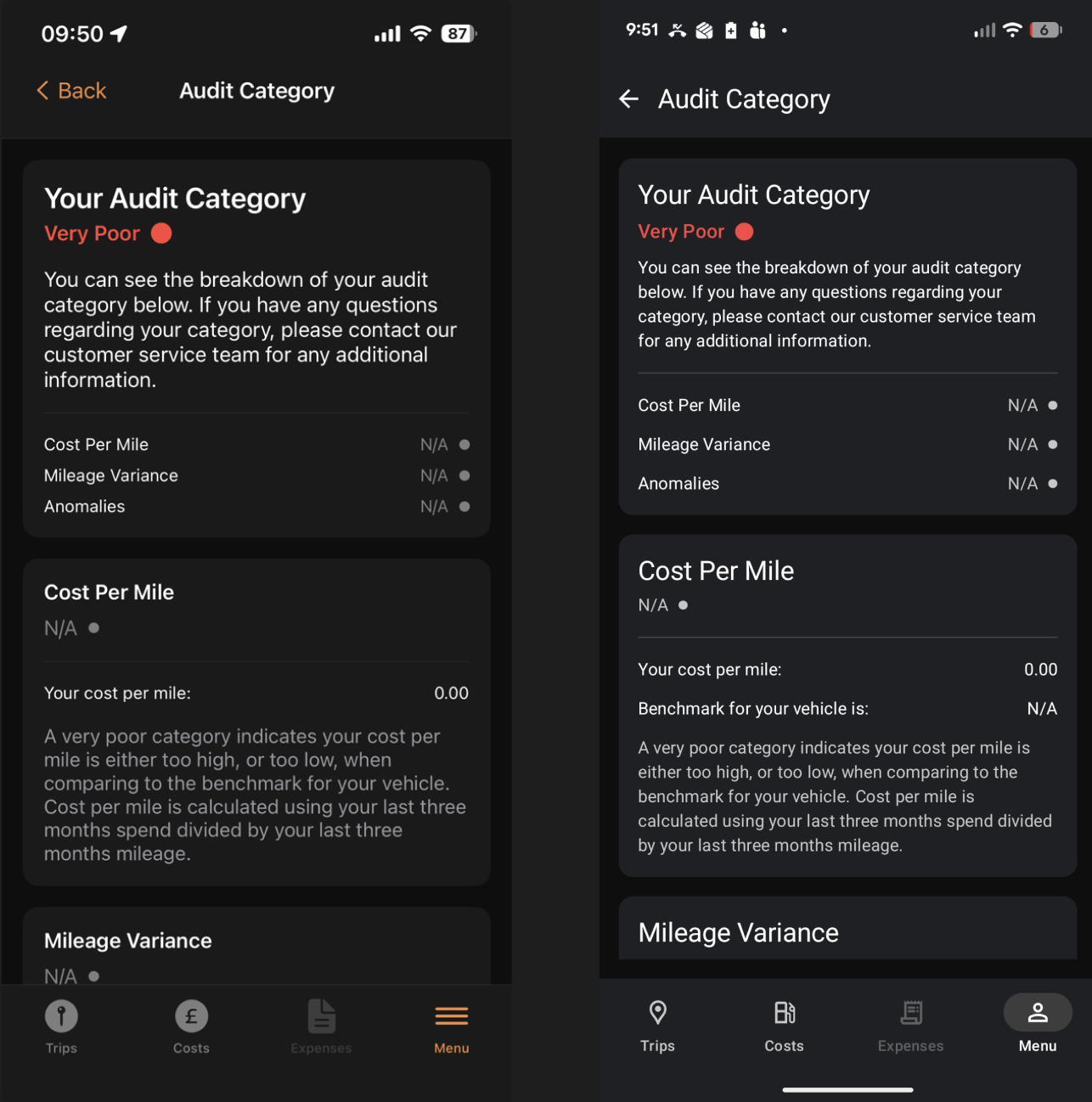
Audit category
Here you can see a breakdown of your scores on various audit categories including; cost per mile, milage variance, and anomalies. If you have any questions regarding your audit scores, please contact our customer service team.
Period history
Your period history shows you a breakdown of all the business and personal miles you've done, as well as employee and employer costs for the current month. Here is where you can close off at the end of the month. For more information on closing off your month, please see user guide: How to close off